PowerShellASP Applied: JSON Factory

Now that we can use PowerShellASP with SharePoint, what can we do with it? Well without master page or web part support, we can’t easily integrate PoShASP content directly into the SharePoint experience. Fortunately, we can leverage PowerShell in other ways. An easy example is generating JSON, perhaps from the PowerShell standby Get-Process:

<% $Response.ContentType = "application/json; charset=utf-8" %>
<% $Response.Cache.SetCacheability([System.Web.HttpCacheability]'NoCache') %>
<% $Response.Cache.SetExpires([DateTime]::MinValue) %>
<% if( !($n = $Request.QueryString["n"] -as [int]) ) { $n = 10 } %>
{"processes":[
  <% [string]::Join(",`n  ",
  (get-process | sort ws -desc | select -first $n | foreach {
  "{'ID':$($_.ID),'Name':'$($_.Name)','WS':$($_.ws)}" })) %>
]}

After we set the JSON ContentType and cache policy, we try to fetch an “n” query parameter. If n is missing or not a number, we default to 10. Now we can start building our JSON object. To build our array, we use System.String‘s static Join method (the backtick is PowerShell’s escape character, so `n is a newline). Join‘s string[] parameter is provided by a PowerShell pipeline that fetches our system processes, sorts by working set size, selects the top $n and then iterates through those process objects, returning a string of JSON with our desired properties. Note also that PoShASP seems to require an empty line at the end of the file, otherwise “]}” is ignored. Our output will look something like this:

{"processes":[
  {'ID':1672,'Name':'sqlservr','WS':506028032},
  {'ID':3296,'Name':'devenv','WS':230555648},
  {'ID':4720,'Name':'w3wp','WS':181100544},
  {'ID':376,'Name':'services','WS':121995264},
  {'ID':3372,'Name':'w3wp','WS':102522880}
]}

Let’s save our JSON endpoint as %12%\TEMPLATE\LAYOUTS\Get-Process.json.ps1x, which we can test by visiting http://server/_layouts/Get-Process.json.ps1x?n=5. Now it’s AJAX time! Since not everyone can use the ASP.NET AJAX Extensions, we’ll just do it the old-fashioned way. Starting with a Content Editor Web Part on a page of your choice, set the source to the following:

<div id="d_procs">
<img src="/_layouts/images/GEARS_AN.GIF"
  alt="Loading..." align="center" />
</div>
<script>
function getXmlHttpRequestObject() {
 if (window.XMLHttpRequest) {
  return new XMLHttpRequest();
 } else if(window.ActiveXObject) {
  return new ActiveXObject("Microsoft.XMLHTTP");
 } else {
  document.getElementById('d_procs').innerHTML =
  'Cound not create XmlHttpRequest Object.';
 }
}

var r = getXmlHttpRequestObject();
var c = 0;
var mTimer;

function getProcs() {
 if (r.readyState == 4 || r.readyState == 0) {
  r.open("GET", '/_layouts/Get-Process.json.ps1x?n=5', true);
  r.onreadystatechange = handleReceiveProcs;
  r.send(null);
 }
}

function handleReceiveProcs() {
 if (r.readyState == 4) {
  var d = document.getElementById('d_procs');
  var response = eval("(" + r.responseText + ")");
  var p = response.processes;
  var t = "<table width=\"100%\">";
  t += "<tr><th>ID</th><th>Name</th><th>WS(MB)</th></tr>";
  for(i=0;i < p.length; i++) {
   t += '<tr><td>'+p[i]['ID']+'</td>';
   t += '<td>'+p[i]['Name']+'</td/>';
   t += '<td align=\"right\">';
   t += (p[i]['WS']/(1024*1024.0)).toFixed(2);
   t += '</td/></tr>';
  }
  t += "</table><p>Refresh count: "+(++c)+"</p>";
  d.innerHTML = t;
  mTimer = setTimeout('getProcs();', 3000); // 3-sec refresh
 }
}

_spBodyOnLoadFunctionNames.push('getProcs');
</script>

I haven’t put much effort into cleaning up the code, but it does the job (in FF2 and IE7, at least):

With PowerShell’s ease of development and specialized adapters, this is just the tip of the iceberg. What other real-time data would you find useful?

PowerShellASP with SharePoint: Scripts in Content Database

In my last post, I mentioned that PowerShellASP doesn’t work for files stored in a SharePoint content database. It wasn’t hard to track down why this is the case, so my next step was to attempt a fix.

First, a recap of the relevant code. In PSHandler.ProcessRequest(HttpContext), the entry point for the handler, we have:

    string filename = A_0.Request.MapPath(A_0.Request.FilePath);
    ...
    this.a(filename);

MapPath doesn’t know to do anything special with content files, so it returns a useless path which is then passed to PSHandler.a(String A_0) and used here:

    using (StreamReader reader = new StreamReader(A_0)) {
      ...

Rather than modify the existing handler (much), I propose creating a SharePoint-specific handler that inherits from PSHandler. Before we can do that, we need to refactor the original slightly to facilitate the extension.

The biggest change is extracting the contents of the using(StreamReader) block into a new protected method that accepts a StreamReader:

    using (StreamReader reader = new StreamReader(A_0)) {
      this.a(reader);
    }

We should also change the private HttpContext field to protected, which I will call _a for our example. Now we have everything we need to extend PSHandler:

  public class SPPSHandler : PSHandler, IHttpHandler {
    public new void ProcessRequest(HttpContext context) {
      base._a = context;

      HttpRequest request = context.Request;
      string filePath = request.FilePath;
      string mappedPath = request.MapPath(filePath);
      if (File.Exists(mappedPath))
        using (StreamReader sr = new StreamReader(mappedPath)) {
          base.a(sr);
          return;
        }

      SPContext currentContext = SPContext.Current;
      if (currentContext != null) {
        SPWeb web = currentContext.Web;
        SPFile file = null;

        if (web != null && (file = web.GetFile(filePath)) != null && file.Exists)
          using (StreamReader sr = new StreamReader(file.OpenBinaryStream())) {
            base.a(sr);
            return;
          }
      }

      // Quoth the server...
      context.Response.StatusCode = 404;
    }
  }

A theoretical subclass is great and all, but does it work? Well we can’t change the original assembly, and I don’t feel like messing with reflection, so let’s build a mock PSHandler instead:

  public class PSHandler : IHttpHandler {
    protected HttpContext _a;

    public bool IsReusable {
      get { return true; }
    }

    public void ProcessRequest(HttpContext A_0) {
      this._a = A_0;
      A_0.Response.Write("PSHandler"); // Shouldn't see this
    }

    protected void a(StreamReader reader) {
      TextWriter o = _a.Response.Output;
      o.Write("<html><body><pre>");
      o.Write(SPEncode.HtmlEncodePreserveSpaces(reader.ReadToEnd().ToUpper()));
      o.Write("</pre></body></html>");
    }
  }

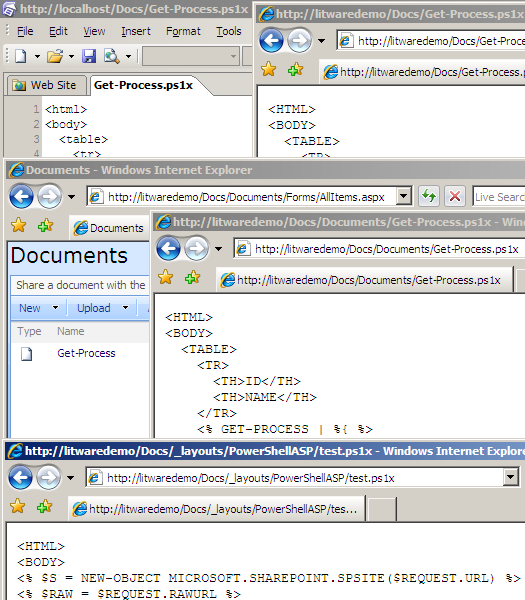
After adjusting the feature receiver to reference our new handler, we see that it does indeed behave as expected:
PowerShellASP in SharePoint - Extended Handler
I haven’t tested extensively, but it’s a start. I doubt the PoShASP team would bother with these changes just for me, so if you’re at all interested leave a comment or at least contact them.

PowerShellASP with SharePoint

PowerShellASP was announced earlier this week, and naturally my first thought was “Does it work with SharePoint?” It turns out that it does, but only for paths mapped to the file system (_layouts, _admin, etc). I’m hoping the authors will consider making a SharePoint extension of the handler to support files stored in the content database as well (more on that later). Just think…writing PowerShell in SharePoint Designer! What could be better?!

Solutionizing PoShASP

Of course you could just follow the provided installation instructions by hand, but what if we wanted to use a WSP?

Step 1: Install PowerShell 1.0

PowerShell is included on Windows Server 2008; for other flavors of Windows, download here.

Step 2: Web.Config Changes

PoShASP requires adding an HttpHandler to web.config. The preferred way to do this is through a WebApplication-scoped feature receiver. The code would look something like this:

using System;
using System.Collections.Generic;
using System.Collections.ObjectModel;
using Microsoft.SharePoint;
using Microsoft.SharePoint.Administration;

namespace Solutionizing.PowerShellASP {
  class WebApplicationFeatureReceiver : SPFeatureReceiver {
    private const string MODS_OWNER = "PowerShellASP";
    private const string PS_VERB = "*";
    private const string PS_PATH = "*.ps1x";
    private const string PS_TYPE = "PowerShellToys.PowerShellASP.PSHandler, PowerShellToys.PowerShellASP";
    private const string MOD_PATH  = "configuration/system.web/httpHandlers";
    private const string MOD_NAME  = @"add[@path=""{0}""]";
    private const string MOD_VALUE = @"<add verb=""{0}"" path=""{1}"" type=""{2}""/>";

    private SPWebConfigModification AddHttpHandler(string verb, string path, string type) {
      SPWebConfigModification mod = new SPWebConfigModification(string.Format(MOD_NAME, path), MOD_PATH);
      mod.Value = String.Format(MOD_VALUE, verb, path, type);
      mod.Owner = MODS_OWNER;
      mod.Sequence = 0;
      mod.Type = SPWebConfigModification.SPWebConfigModificationType.EnsureChildNode;
      return mod;
    }

    public override void FeatureActivated(SPFeatureReceiverProperties properties) {
      SPWebApplication webApp = properties.Feature.Parent as SPWebApplication;
      webApp.WebConfigModifications.Add(AddHttpHandler(PS_VERB, PS_PATH, PS_TYPE));
      webApp.Farm.Services.GetValue<SPWebService>().ApplyWebConfigModifications();
    }

    public override void FeatureDeactivating(SPFeatureReceiverProperties properties) {
      SPWebApplication webApp = properties.Feature.Parent as SPWebApplication;
      Collection<SPWebConfigModification> mods = webApp.WebConfigModifications;

      int startCount = mods.Count;
      for (int c = startCount - 1; c >= 0; c--) {
        SPWebConfigModification mod = mods[c];
        if (mod.Owner == MODS_OWNER)
          mods.Remove(mod);
      }

      if (startCount > mods.Count) {
        webApp.Update();
        webApp.Farm.Services.GetValue<SPWebService>().ApplyWebConfigModifications();
      }
    }

    public override void FeatureInstalled(SPFeatureReceiverProperties properties) { }
    public override void FeatureUninstalling(SPFeatureReceiverProperties properties) { }
  }
}

And we need a feature for the receiver. (Download image here.)
PowerShell Logo

<Feature Id="316F5804-C11B-4E4B-9CD3-E6BD6801091A"
         Title="PowerShellASP"
         Description="Installs PowerShellASP - http://www.powershelltoys.com/"
         Scope="WebApplication"
         Version="1.0.0.0"
         ImageUrl="PowerShellASP/PoSh_60x45.jpg"
         ImageUrlAltText="PowerShell"
         ReceiverAssembly="Solutionizing.PowerShellASP, ..."
         ReceiverClass="Solutionizing.PowerShellASP.WebApplicationFeatureReceiver"
         xmlns="http://schemas.microsoft.com/sharepoint/" />

Step 3: Test Script

Before we finish the package, let’s add a sample script in LAYOUTS – test.ps1x:

<html>
<body>
<% $s = new-object Microsoft.SharePoint.SPSite($Request.Url) %>
<% $raw = $Request.RawUrl %>
<% $w = $s.OpenWeb($raw.Substring(0, $raw.IndexOf($Request.Path))) %>
<h1>Hidden Lists in <a href="<%=$w.Url %>"><%=$w.Title %></a></h1>
<table width="100%">
<tr><th>List Title</th><th>Items<tr></th></tr>
<% $w.Lists | ?{$_.Hidden -eq $true} |
   sort @{expression="ItemCount";Ascending=$true},@{expression="Title";Descending=$true} | %{ %>
<tr>
  <td><a href="<%= $w.Url %><%= $_.DefaultViewUrl %>"><%= $_.Title %></a></td>
  <td><%= $_.ItemCount %></td>
</tr>
<tr><td colspan="2"><p style="overflow: auto; height: 8em">
<%= [Microsoft.SharePoint.Utilities.SPEncode]::HtmlEncode($_.PropertiesXml) %>
</p></td></tr>
<% } %>
</table>
<pre>
<% $w %>
<% $s %>
<% $Request %>
</pre>
</body>
</html>

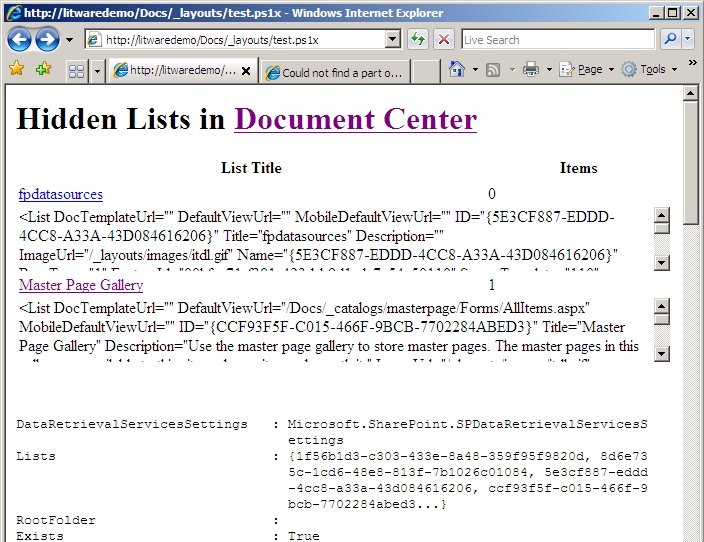
This contrived example fetches the current SPSite and SPWeb and then outputs a table of the hidden lists in the current site with a few properties. It also dumps the default PowerShell view of the current SPWeb, SPSite and HttpRequest objects. It’s not exactly pretty, but it sufficiently demonstrates a few key concepts of PoShASP.

Step 4: Deploy DLL

The final piece is the assembly, which needs to go in the web application’s bin directory. Our solution brings everything together:

<Solution SolutionId="5C594B30-9AE5-4910-8DA2-1D7BA622FACC"
          ResetWebServer="True"
          xmlns="http://schemas.microsoft.com/sharepoint/">
  <FeatureManifests>
    <FeatureManifest Location="PowerShellASP\feature.xml" />
  </FeatureManifests>
  <TemplateFiles>
    <TemplateFile Location="IMAGES\PowerShellASP\PoSh_60x45.jpg" />
    <TemplateFile Location="LAYOUTS\PowerShellASP\test.ps1x" />
  </TemplateFiles>
  <Assemblies>
    <Assembly Location="Solutionizing.PowerShellASP.dll"
              DeploymentTarget="GlobalAssemblyCache" />
    <Assembly Location="PowerShellToys.PowerShellASP.dll"
              DeploymentTarget="WebApplication" />
  </Assemblies>
</Solution>

Step 5: Deploy

Now that our solution is complete, we can install and deploy the WSP. Note that the package contains a resource—the PoShASP DLL—scoped for a web application, so deploy accordingly. Once the solution is deployed, the feature needs to be activated through Central Admin or stsadm (or PowerShell ;). If all goes according to plan, the application’s bin directory will contain PowerShellToys.PowerShellASP.dll and web.config will have an HttpHandler for .ps1x files. Now open your browser to http://yourapp/_layouts/PowerShellASP/test.ps1x and see what we have. You can also try http://yourapp/SubSite/_layouts/PowerShellASP/test.ps1x to see the change in site context. (Screenshot was taken before I rolled test.ps1x into my test solution.)

From Content Database

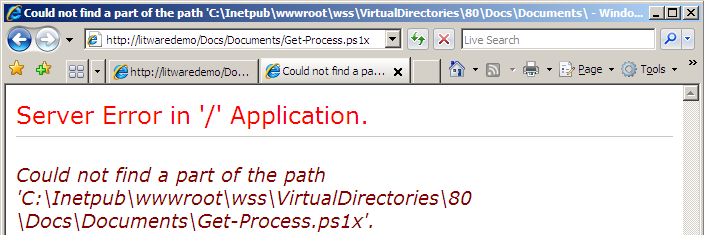
Earlier I mentioned that the handler doesn’t work for scripts stored in the content database. The easiest way to test this is to upload a .ps1x file to a document library. Attempting to open the file yields a lovely exception. So where is this exceptional path coming from? Well the stack trace gives us a good place to start:

   System.IO.StreamReader..ctor(String path) +112
   PowerShellToys.PowerShellASP.PSHandler.a(String A_0) +75

Cue Reflector. In PSHandler.a(String A_0) we find the following:

    using (StreamReader reader = new StreamReader(A_0)) {
      ...

And A_0 comes from the implementation of IHttpHandler.ProcessRequest(HttpContext):

    string filename = A_0.Request.MapPath(A_0.Request.FilePath);
    ...
    this.a(filename);

Since Docs/Documents/Get-Process.ps1x doesn’t map to anything special like _layouts, IIS just maps it to the local root of the site. We know this won’t work, but how can we let the handler in on our little secret? In my next post I’ll go over some code that could get us to that point.

With or without the content database limitation, how would you use PowerShellASP with SharePoint?

SPSite/SPWeb Leaks Revisited

A while back I posted a rather clumsy technique to mitigate an SPWeb leak discussed here. I knew there had to be a better way, and Rob Garrett‘s use of delegates seems to have potential.

But first, I should point out a rather subtle leak in Chris’s and my code:

        list = currentContext.Site.AllWebs["MyWeb"].Lists["MyList"];

See it? How about now:

        SPWeb web = currentContext.Site.AllWebs["MyWeb"];
        list = web.Lists["MyList"];

The context SPSite shouldn’t be disposed, but AllWebs returns an SPWeb that should (according to Roger Lamb):

        using (SPWeb web = currentContext.Site.AllWebs["MyWeb"]) {
          list = web.Lists["MyList"];
        }

That Chris and I (and our readers) can overlook this in posts about SPWeb leaks is a testament to how tricky this stuff can be.

Super Delegates?

So how would Rob’s technique be used to DoSomething? Well none of his helpers take advantage of SPContext, so first let’s add a helper for that:

public static void GetContextWebByTitle(string title, Action<SPSite, SPWeb> action) {
  if (String.IsNullOrEmpty(title))
    throw new ArgumentNullException("title");
  if (null == action)
    throw new ArgumentNullException("action");

  SPContext currentContext = SPContext.Current;
  if (null == currentContext)
    throw new SPException("Context is null!");

  SPSite site = currentContext.Site;
  using (SPWeb web = site.AllWebs[title]) {
    if (null == web)
      throw new SPException("Web not found");
    action(site, web);
  }
}

Now we can refactor into a method that matches the delegate:

public void DoSomething(SPSite site, SPWeb web) {
  SPList list = web.Lists["MyList"];

  // do something with list..
  foreach (SPListItem item in list.Items) {
    processItem(item);
  }
}

And our original DoSomething() just determines which helper to call:

public void DoSomething() {
  if (SPContext.Current != null)
    SPHelper.GetContextWebByTitle("MyWeb", DoSomething);
  else
    SPHelper.GetWebByTitle("http://litwaredemo", "MyWeb", DoSomething);
}

Pretty simple. But we’re still thinking a bit too much – couldn’t GetWebByTitle check context for us? Of course:

  if (SPContext.Current != null)
    GetContextWebByTitle(title, action);
  else
    using (var site = new SPSite(url)) {
      ...

So we don’t have to think at all:

public void DoSomething() {
  SPHelper.GetWebByTitle("http://litwaredemo", "MyWeb", DoSomething);
}

I still need to try this technique in some real code, but I like the theory. It certainly makes sense to separate the logic to create and dispose SPSite/SPWeb objects from the code to manipulate them, and it’s even better to standardize that logic. But even with an arsenal of slick helpers, a leaky delegate can take us back to where we started:

public void DoSomething(SPSite site) {
  foreach (SPWeb web in site.AllWebs)
    processWeb(web);
}

Not that this diminishes the value of Rob’s solution, it just reinforces the need for developers to know the disposal patterns even with help.

Theme-amajig Refactored: Using Feature Properties

In a previous post, I described a feature that would take install and retract modifications to SPTHEMES.XML. Peter Seale suggested providing a method to reapply the changes without a deactivate/activate cycle, specifically for new servers added to a farm. It should be as simple as providing a user interface to call FeatureThemesJob.InstallThemes, but that presents a bit of a problem: InstallThemes expects the name of the themes file, which I declare in the feature receiver. So before we can work on a reapplication interface, let’s move that file name to a more accessible location.

The Revised Feature

A better way to store the theme file name would be as a Feature Property:

<Feature
  Id="E2F8D046-607D-4BB6-93CC-2C04CF04099E"
  Title="SPHOLS Themes"
  Description="Installs SPHOLS and SPHOLSX themes on farm."
  Version="1.0.0.0"
  Scope="Farm"
  ReceiverAssembly="MyBranding, ..."
  ReceiverClass="MyBranding.MyThemesFeatureReceiver"
  xmlns="http://schemas.microsoft.com/sharepoint/">
  <ElementManifests>
    <ElementFile Location="SPTHEMES.XML" />
  </ElementManifests>
  <Properties>
    <Property Key="Solutionizing:ThemesFile" Value="SPTHEMES.XML" />
  </Properties>
</Feature>

And we can remove references to THEMES_FILE from our receiver:

namespace MyBranding {
  public class MyThemesFeatureReceiver : SPFeatureReceiver {
    public override void FeatureActivated(SPFeatureReceiverProperties properties) {
      if (properties == null)
        throw new ArgumentNullException("properties");
      FeatureThemesJob.InstallThemes(properties.Definition);
    }

    public override void FeatureDeactivating(SPFeatureReceiverProperties properties) {
      if (properties == null)
        throw new ArgumentNullException("properties");
      FeatureThemesJob.DeleteThemes(properties.Definition);
    }

    public override void FeatureInstalled(SPFeatureReceiverProperties properties) { }
    public override void FeatureUninstalling(SPFeatureReceiverProperties properties) { }
  }
}

Note that this code is now completely feature-agnostic, reusable for any themes feature.

FeatureThemesJob

Other than purging the logic to persist _themesFile, which I’ll leave as an exercise for the reader, we just need to update Execute to use our new feature property:

    private const string PROP_THEMES_FILE = "Solutionizing:ThemesFile"
    private const string SPTHEMES_PATH = @"TEMPLATE\LAYOUTS\1033\SPTHEMES.XML";
    public override void Execute(Guid targetInstanceId) {
      SPFeatureDefinition fDef = Farm.FeatureDefinitions[_featureID];
      if (fDef != null) {
        SPFeatureProperty themesFileProp = fDef.Properties[PROP_THEMES_FILE];
        if(themesFileProp == null)
          throw new SPException(string.Format("Feature '{0}' is missing property '{1}'.", fDef.DisplayName, PROP_THEMES_FILE));

        DoMerge(SPUtility.GetGenericSetupPath(SPTHEMES_PATH), Path.Combine(fDef.RootDirectory, themesFileProp.Value));
      }
    }

But since we’re in a refactoring mood, we might as well extract the code to retrieve the themes file path:

    internal const string PROP_THEMES_FILE = "Solutionizing:ThemesFile"
    private const string ERR_FEATURE_NOT_FOUND = "Feature '{0}' not found in farm.";
    private const string ERR_MISSING_PROPERTY = "Feature '{0}' is missing property '{1}'.";
    internal string ThemesFilePath {
      get {
        SPFeatureDefinition fDef = Farm.FeatureDefinitions[_featureID];
        if (fDef == null)
          throw new SPException(string.Format(ERR_FEATURE_NOT_FOUND, _featureID));

        SPFeatureProperty prop = fDef.Properties[PROP_THEMES_FILE];
        if (prop == null)
          throw new SPException(string.Format(ERR_MISSING_PROPERTY, fDef.DisplayName, PROP_THEMES_FILE));

        return Path.Combine(fDef.RootDirectory, prop.Value);
      }
    }

Which makes Execute rather elegant:

    private const string SPTHEMES_PATH = @"TEMPLATE\LAYOUTS\1033\SPTHEMES.XML";
    public override void Execute(Guid targetInstanceId) {
      DoMerge(SPUtility.GetGenericSetupPath(SPTHEMES_PATH), ThemesFilePath);
    }

Now everything we need for the timer job is available from the feature definition. The next step is to build an interface to run the job on demand. Stay tuned!

Another SharePoint Developer/Debugging Tips List

If you can only follow a single SharePoint developer blog, it should probably be Andrew Connell (even if hitting Enter in his Search box still doesn’t work in Firefox). If for some reason you haven’t already, make sure you’ve read his excellent SharePoint developer tips and tricks and SharePoint Debugging and Logging Tips and Tricks. Here are a few additional tips from comments there and elsewhere:

Debugger.Launch()

AC suggests System.Diagnostics.Trace.Assert(false) to force the debugger; System.Diagnostics.Debugger.Launch() is a more explicit alternative (featured on Corey’s .NET Tip of the Day).

Debugging GAC’d Assemblies

AC says “you’ll need to put the debugging symbols in the same location as the assembly.” While a few of the comments hint that for them it “just works” without that step, that’s probably due to a setting in their environment: Just My Code debugging is likely off. Vincent Rothwell’s Debugging Tips for SharePoint mentions this setting in passing and it has since been highlighted here and here as well.

Attaching to w3wp

Debugging doesn’t work if you aren’t attached to the right IIS worker process. One option is to use the Debugger Feature from the CodePlex Features project, which adds a new menu item to the Site Actions menu that attaches the debugger. If you would rather not install a feature, Doug Perkes suggests adding a VS External Tool to list the PIDs:

  • Title: Get IIS PIDs
  • Command: cscript.exe
  • Arguments: %systemroot%\system32\iisapp.vbs
  • Check “Use Output Window”

More External Tools

Speaking of which, Scot Hillier has put together a CodePlex project to support his development process. The installation includes several useful External Tools and more than a dozen developer-focused STSADM extensions. My favorites are enumpools and recyclepool; much more SharePointy than iisapp.vbs /r /a. Or for a GUI try Spence Harbar‘s Application Pool Recycle Utility for SharePoint Developers. For even more STSADM extensions (and some great SP object model code in general), check out Gary Lapointe’s blog.

Opening WSPs

Some developers prefer to make a copy of their WSPs with a .CAB extension as part of their development process, but if you don’t mind modifying the registry Waldek Mastykarz has a nice post on browsing .wsp files using Windows Explorer. Or if WinRAR is your tool of choice, a .reg with the following will do the trick:

Windows Registry Editor Version 5.00

[HKEY_CLASSES_ROOT\.wsp]
@="WinRAR"

Easy Access to 12 and VirtualDirectories

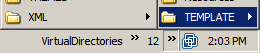
Waldek also posted about getting quickly to the VirtualDirectories folder in Explorer View. Many developers use a 12 Hive Toolbar; I use the same technique for VirtualDirectories. As for opening in Explorer View, why not make that the default Folder action? Here’s another .reg that does just that:

Windows Registry Editor Version 5.00

[HKEY_CLASSES_ROOT\Folder\shell]
@="explore"

Managing CAML

If I don’t stop myself now I’ll end up with a comprehensive list of every cool SharePoint thing I’ve seen in the last year. So I’ll leave you with Katrien’s list instead.

Update 7/12/2008: Added U2U CAML Query Builder.

VSeWSS: At Least It Knows CAML

Scot Hillier just posted an excellent answer to the question “Is VSeWSS 1.2 Ready for Prime Time?” In the comments, Microsoft’s Chris Johnson follows up with the assertion that the extensions cover 99% of what a developer might need. I would put that number a bit lower, but more important is the first impression given by the tools.

As the logical first tool for new developers, the extensions will undoubtedly play a formative role in how that developer thinks about SharePoint development. Scot highlights one such problem in the provided project templates: two of the four (plus empty) are Site Definitions. To a new developer, this implies that Site Definitions are probably really important, when in fact you (probably) don’t need them.

Another fundamental shortcoming of the extensions is the black box method of solution creation. Managing DDF files and manifest.xml can certainly be tedious, but there comes a time when every developer needs to tweak something in the solution definition. Scot’s example is the forced inclusion of an assembly; a quick glance at the Solution Schema reveals several others (SafeControls and CAS in particular). This is a huge blind spot in a new developer’s understanding of how SharePoint really works.

Update: A bit more research reveals that you can indeed add SafeControls (example by Chris Johnson) and CAS to the manifest.xml in WSP View. Better examples might be RootFiles or Resources, which don’t seem to have anywhere to go in a VSeWSS project.

Less prevalent but equally disarming is that the project just ignores files that it doesn’t understand. I had originally planned to use the branding lab of the VSeWSS-based SharePoint Hands on Labs (download) as an example for my latest post on using features to update SPTHEMES.XML. The process went something like this:

  1. Open VSeWSS project
  2. Add New Item > Module
  3. In new feature: Add Existing Item > Browse to SPTHEMES.XML
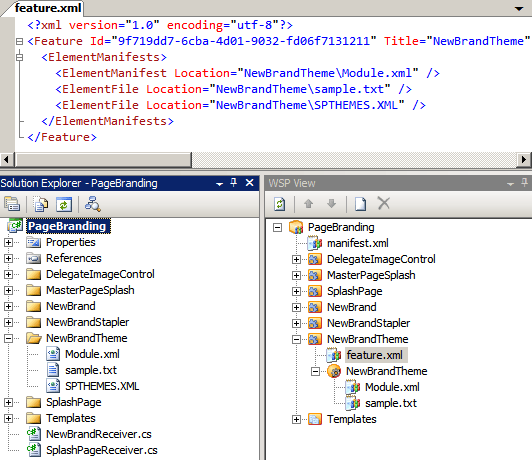
  4. Switch to WSP view and update the feature.xml with the new <ElementFile />
  5. Deploy
  6. Error: Cannot find this file specified in the manifest file:
    NewBrandTheme\NewBrandTheme\SPTHEMES.XML
  7. Sigh…

Missing ElementFile
The only way I could get my file included in the solution was to add it to the module:
<File Path="SPTHEMES.XML" Url="ThanksVSeWSS" />
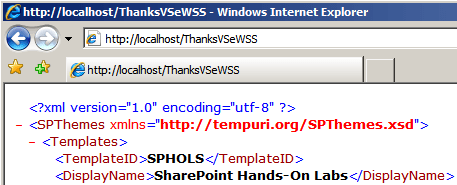
Which has an undesired side effect:
Thanks VSeWSS

Ultimately the problem comes down to the tool not allowing someone that knows better to take control. A bike with permanent training wheels is eventually outgrown.

As A CAML Tool

Specific limitations aside, Chris did hit on a very important use of the extensions: heavy lifting of the XML files. I have found no better way to generate the extensive XML required for List Definitions Templates, Content Types and such. (For more help authoring XML, check out AC’s tools.) New developers in particular should use the extensions to build a few content types, lists, instances, etc. to see how everything fits together. But what if we want to use these XML files with another solutionizing method (WSPBuilder, STSDEV, PowerShell, batch files)? We could certainly retrieve them from the 12 hive after deployment, but it turns out there’s an easier way.

When a VSeWSS project is deployed, it stores the full directory structure of the WSP in $(TargetDir)\solution. All we need to do is pull the appropriate folders into a new project built with the tool of your choice: LAYOUTS, IMAGES, etc. into TEMPLATE; feature folders into TEMPLATE\FEATURES; and so forth. Note that the solution directory only stays populated if the deployment succeeds, and you will need to retract the VSeWSS solution (or change the feature IDs) before you can install the features as part of the new solution. Just like SPD, we use the tool for its strengths and then pull what we need out into a project of our own design. I imagine a similar approach could probably be used with WebParts, though I haven’t done anything with them in VSeWSS.

Ultimately I have to agree with Scot that, despite tremendous potential for future releases, for now VSeWSS just doesn’t quite have the flexibility needed for sophisticated solution development. That said, it’s very solid in its strengths and definitely has its uses in the context of your chosen development approach.

Posted in SharePoint, Tools. Tags: . 3 Comments »

Theme-amajig: Updating SPTHEMES.XML Through a Feature

Love them or hate them, SharePoint themes do have their uses in some approaches to branding. As Dan Lewis recently posted, the process to create a theme is pretty simple, but there’s one step that makes me cringe: edit SPTHEMES.XML. I’m not aware of any out-of-box mechanism to facilitate this change, so I figured it might be worthwhile to build one.

In researching the idea, I found this post by Rick Kierner. He’s on the right track, but his solution only deploys the theme to the local server and a web-scoped feature isn’t really appropriate for a server-wide change. Ultimately I came up with the following solution, which should be easier to maintain and is perhaps a bit more SharePointy.

The Feature

First, we create a farm-scoped feature with a single <ElementFile /> node:

<Feature
  Id="E2F8D046-607D-4BB6-93CC-2C04CF04099E"
  Title="SPHOLS Themes"
  Description="Installs SPHOLS and SPHOLSX themes on farm."
  Version="1.0.0.0"
  Scope="Farm"
  ReceiverAssembly="MyBranding, ..."
  ReceiverClass="MyBranding.MyThemesFeatureReceiver"
  xmlns="http://schemas.microsoft.com/sharepoint/">
  <ElementManifests>
    <ElementFile Location="SPTHEMES.XML" />
  </ElementManifests>
</Feature>

Then we create our own SPTHEMES.XML with the theme(s) we would like to add, saved in the same folder as feature.xml.

<?xml version="1.0" encoding="utf-8"?>
<SPThemes xmlns="http://tempuri.org/SPThemes.xsd">
  <Templates>
    <TemplateID>SPHOLS</TemplateID>
    <DisplayName>SharePoint Hands-On Labs</DisplayName>
    <Description>A glorious theme created for the SharePoint Hands-On Labs.</Description>
    <Thumbnail>images/SPHOLS/thSPHOLS.gif</Thumbnail>
    <Preview>images/SPHOLS/thSPHOLS.gif</Preview>
  </Templates>
  <Templates>
    <TemplateID>SPHOLSX</TemplateID>
    <DisplayName>SharePoint Hands-On Labs X</DisplayName>
    <Description>An XTRA glorious theme created for the SharePoint Hands-On Labs.</Description>
    <Thumbnail>images/SPHOLS/thSPHOLS.gif</Thumbnail>
    <Preview>images/SPHOLS/thSPHOLS.gif</Preview>
  </Templates>
</SPThemes>

And finally, our feature receiver:

namespace MyBranding {
  public class MyThemesFeatureReceiver : SPFeatureReceiver {
    private const string THEMES_FILE = "SPTHEMES.XML";

    public override void FeatureActivated(SPFeatureReceiverProperties properties) {
      if (properties == null)
        throw new ArgumentNullException("properties");
      FeatureThemesJob.InstallThemes(properties.Definition, THEMES_FILE);
    }

    public override void FeatureDeactivating(SPFeatureReceiverProperties properties) {
      if (properties == null)
        throw new ArgumentNullException("properties");
      FeatureThemesJob.DeleteThemes(properties.Definition, THEMES_FILE);
    }

    public override void FeatureInstalled(SPFeatureReceiverProperties properties) { }
    public override void FeatureUninstalling(SPFeatureReceiverProperties properties) { }
  }
}

That’s it. When the feature is activated, the contents of the feature’s “themes file” are merged into the farm servers’ SPTHEMES.XML. While deactivating, those same themes will be deleted. The heavy lifting is handled by a reusable custom timer job.

FeatureThemesJob

Our custom job begins with a few persisted fields and constructors:

using System;
using System.Diagnostics;
using System.IO;
using System.Xml;
using System.Xml.XPath;
using Microsoft.SharePoint;
using Microsoft.SharePoint.Administration;
using Microsoft.SharePoint.Utilities;

namespace MyBranding {
  public class FeatureThemesJob : SPJobDefinition {
    [Persisted]
    private Guid _featureID = Guid.Empty;
    [Persisted]
    private string _themesFile = null;
    [Persisted]
    private bool _delete = false;

    public FeatureThemesJob() : base() { }

    public FeatureThemesJob(SPService service, Guid featureID, string themesFile, bool delete)
      : base("Feature Themes", service, null, SPJobLockType.None) {
      _featureID = featureID;
      _themesFile = themesFile;
      _delete = delete;

      Title = string.Format("{0} Themes for Feature {1}",
          (delete ? "Delete" : "Install"), featureID);
    }

The default constructor is required for internal use and our real constructor saves the field values and lets SPJobDefinition do its thing.

Our Execute override uses a helper method that takes two paths: the path to the server’s SPTHEMES.XML and the path to our feature’s themes file.

    private const string SPTHEMES_PATH = @"TEMPLATE\LAYOUTS\1033\SPTHEMES.XML";
    public override void Execute(Guid targetInstanceId) {
      SPFeatureDefinition fDef = Farm.FeatureDefinitions[_featureID];
      if (fDef != null)
        DoMerge(SPUtility.GetGenericSetupPath(SPTHEMES_PATH), Path.Combine(fDef.RootDirectory, _themesFile));
    }

First we open the XML files and do a bit of initial setup:

    public void DoMerge(string pathToSPThemes, string pathToMerge) {
      try {
        XmlDocument docThemes = new XmlDocument();
        docThemes.Load(pathToSPThemes);
        string nsThemes = docThemes.DocumentElement.NamespaceURI;

        XPathNavigator navThemes = docThemes.CreateNavigator();
        XmlNamespaceManager mgrThemes = new XmlNamespaceManager(navThemes.NameTable);
        mgrThemes.AddNamespace("t", nsThemes);

        XmlDocument docMerge = new XmlDocument();
        docMerge.Load(pathToMerge);

        XPathNavigator navMerge = docMerge.CreateNavigator();
        XmlNamespaceManager mgrMerge = new XmlNamespaceManager(navMerge.NameTable);
        mgrMerge.AddNamespace("t", docMerge.DocumentElement.NamespaceURI);

        bool shouldSave = false;

Now we use XPath to retrieve and iterate over a list of the themes in our feature.

        XmlNodeList mergeNodes = docMerge.SelectNodes("/t:SPThemes/t:Templates/t:TemplateID", mgrMerge);
        foreach (XmlNode mergeNode in mergeNodes) {

And use XPath again to find an existing theme with the same TemplateID.

          try {
            string xpath = string.Format("/t:SPThemes/t:Templates[t:TemplateID = '{0}']", mergeNode.InnerText);
            XmlNode node = docThemes.SelectSingleNode(xpath, mgrThemes);

If we’re deleting and we find the theme node, get rid of it.

            if (_delete) {
              if (node != null)
                node.ParentNode.RemoveChild(node);
            }

Otherwise create a Templates element for the new theme. I’m assuming this part could be cleaned up with a deeper understanding of the XML object model — help! For now I just copy the source XML into a new node in the destination document. I iterate through the new children and RemoveAllAttributes() to eliminate extra xmlns attributes that I can’t figure out how to prevent.

            else {
              XmlNode newNodeParent = mergeNode.ParentNode;
              XmlElement toInsert = docThemes.CreateElement(newNodeParent.Name, nsThemes);
              toInsert.InnerXml = newNodeParent.InnerXml;
              foreach (XmlElement xe in toInsert.ChildNodes)
                xe.RemoveAllAttributes();

              if (node == null)
                docThemes.DocumentElement.AppendChild(toInsert);
              else
                node.ParentNode.ReplaceChild(toInsert, node);
            }

If we get to this point, everything went fine and we should save our results.

            shouldSave = true;
          }
          catch (Exception ex) {
            Trace.WriteLine("Error merging theme " + mergeNode.InnerText);
            Trace.WriteLine(ex);
          }
        } // foreach mergeNode

        if (shouldSave)
          docThemes.Save(pathToSPThemes);
      }
      catch (Exception ex) {
        Trace.WriteLine("Failed to merge themes");
        Trace.WriteLine(ex);
        throw;
      }
    }

Now that the job is defined, we can add a few helpers. First, a method to run the job immediately—a technique borrowed from Vincent Rothwell—combined with a variation on AC’s technique to delete existing jobs:

    public void SubmitJobNow() {
      if (Farm.TimerService.Instances.Count < 1)
        throw new SPException("Could not run job. Timer service not found.");

      foreach (SPJobDefinition job in Service.JobDefinitions)
        if (job.Name == Name)
          job.Delete();

      Schedule = new SPOneTimeSchedule(DateTime.Now.AddHours(-2));
      Update();
    }

Next, the static methods we used earlier in the feature receiver.

    public static void InstallThemes(SPFeatureDefinition def, string themesFile) {
      MergeFeatureThemes(def, themesFile, false);
    }
    public static void DeleteThemes(SPFeatureDefinition def, string themesFile) {
      MergeFeatureThemes(def, themesFile, true);
    }

These share our final helper, which iterates through the web services on the farm and starts our job for each of them.

    private static void MergeFeatureThemes(SPFeatureDefinition def, string themesFile, bool delete) {
      if (def == null)
        throw new ArgumentNullException("def");

      SPFarm f = def.Farm;
      if (f == null)
        f = SPFarm.Local;

      foreach (SPWebService svc in new SPWebServiceCollection(f)) {
        FeatureThemesJob itj = new FeatureThemesJob(svc, def.Id, themesFile, delete);
        itj.SubmitJobNow();
      }
    }
  }
}

I’m sure there are improvements to be made, and I’m not certain I’ve properly handled all the multi-server scenarios, but it’s a start. What do you think?

Also, while we’re on the topic of features creating custom timer jobs, check out Vincent’s post on issues related to accounts and jobs. The gist is that features that create jobs should be scoped at the WebApplication or Farm level to ensure sufficient permissions to modify the configuration database.

Update 7/13/2008: Theme-amajig Refactored: Using Feature Properties

Update 11/28/2008: Bugs in the original post have been corrected. I also added a release on Codeplex with sample code: Sample Generated Theme Solution; you can generate your own with my STSDEV Theme Solution Generator.

Web Service Results – XPath is your friend!

Yesterday Eric Shupps posted about retrieving error messages from SharePoint web services. I noticed he uses XPath to retrieve the error codes, but then falls back on object manipulation to filter for real errors and to retrieve the error message:

XmlNode ndRoot = xmlResult.SelectSingleNode("sp:Results", nsMgr);
// Find the ErrorCode node, which exists for all operations regardless of status.
XmlNodeList nlResults = ndRoot.SelectNodes("//sp:Result/sp:ErrorCode", nsMgr);
// Loop through the node collection and find each ErrorCode entry
foreach (XmlNode ndResult in nlResults) {
  // Check the value of the node to determine its status
  if (ndResult.InnerText != "0x00000000") {
    XmlNode ndError = ndResult.NextSibling;
    string sError = ndError.InnerText;
    …

Just like we wouldn’t omit a SQL WHERE clause in favor of filtering a DataSet with string comparison, we should probably let XPath do as much for us as possible. In this case a few tweaks reduce the logic to a single selection, also offering a quick exit if there are no errors found:

// Find the ErrorText for Result nodes with non-zero ErrorCode.
string xpath = "/sp:Results/sp:Result[sp:ErrorCode != '0x00000000']/sp:ErrorText";
XmlNodeList nlErrors = xmlResult.SelectNodes(xpath, nsMgr);
if (nlErrors.Count == 0) {
  // No errors - return "Success", false, null, whatever
}
foreach (XmlNode ndError in nlErrors) {
  string sErrorText = ndError.InnerText;
  …

As Eric mentioned, there are a few ways to handle the error(s) returned. I thought it might be useful to pair the ErrorText with the ID of the method that generated it:

// Key = Method ID; Value = Error Text
static Dictionary<string, string> GetErrors(XmlDocument xmlResult) {
  XmlNamespaceManager nsMgr = new XmlNamespaceManager(xmlResult.NameTable);
  XmlElement ndRoot = xmlResult.DocumentElement;
  nsMgr.AddNamespace("sp", ndRoot.NamespaceURI);

  // Find the ErrorText for Result nodes with non-zero ErrorCode.
  string xpath = "/sp:Results/sp:Result[sp:ErrorCode != '0x00000000']/sp:ErrorText";
  XmlNodeList nlErrors = ndRoot.SelectNodes(xpath, nsMgr);

  if (nlErrors.Count == 0) {
    return null;
  }

  Dictionary<string, string> errorDict = new Dictionary<string, string>(nlErrors.Count);
  foreach (XmlNode ndError in nlErrors) {
    XmlNode ndResultId = ndError.ParentNode.Attributes["ID"];
    if (ndResultId != null) {
      errorDict.Add(ndResultId.Value, ndError.InnerText);
    }
  }
  return errorDict;
}

I figure a single XPath selection plus a reference to ParentNode would be more efficient than selecting the Result node for the ID and then finding its ErrorText child from there. And of course if there are better ways to do this, please share!

Disposing list’s SPSite/SPWeb without ParentWeb

Update 12/10/2008: Don’t use this technique; use the guidance here instead: The New Definitive SPSite/SPWeb Disposal Article

Chris O’Brien’s recent post discusses the need to dispose of SPSite and SPWeb objects, but only if they didn’t come from SPContext. To do this he depends on a list’s ParentWeb property, which currently returns the same instance as the original SPWeb. However, he notes that this strategy depends on the internal implementation of ParentWeb, which (however unlikely) might change.

As a future-proof alternative, I propose capturing the SPWeb as an out parameter if it will need to be disposed:

public void DoSomething() {
  SPWeb webToDispose = null;
  SPList list = getList(out webToDispose);

  // do something with list..
  foreach (SPListItem item in list.Items) {
    processItem(item);
  }

  // ** PROBLEM - how do we now dispose of the SPSite/SPWeb objects we created earlier? **
  // ** SOLUTION - if we didn't use context, webToDispose has reference
  if (webToDispose != null) {
    webToDispose.Dispose();
    webToDispose.Site.Dispose();
  }
}

private SPList getList(out SPWeb webToDispose) {
  webToDispose = null;

  SPContext currentContext = SPContext.Current;
  SPList list = null;

  if (currentContext != null) {
    list = currentContext.Site.AllWebs["MyWeb"].Lists["MyList"];
  }
  else {
    SPSite site = new SPSite("http://solutionizing.net");
    webToDispose = site.OpenWeb("/MyWeb");
    list = webToDispose.Lists["MyList"];
  }

  return list;
}

This code should be functionally equivalent and perhaps a bit easier to read, but without the dependency on ParentWeb. Thoughts?

Also, to add to Chris’s list of required reading, check out Roger Lamb’s excellent SharePoint 2007 and WSS 3.0 Dispose Patterns by Example.

Update 7/23/2008: How ironic…Chris and I have a leak! If you can’t spot it, I explain here.